 All TV Remote
Universal TV remote for your iPhone
All TV Remote turns your iPhone into a fast, simple remote control for your smart TV: Roku, Samsung, LG, Android TV, Google TV, Fire TV, Vizio and Apple TV. It works over your home Wi-Fi, with nothing to plug in and no account to make.
All TV Remote at a glance
What it is
A universal TV remote app for iPhone that controls smart TVs over Wi-Fi
Works with
Roku, Samsung (Tizen 2016 and newer), LG (webOS), Android TV and Google TV, Amazon Fire TV, Vizio SmartCast, Apple TV
Price
Free
Device
iPhone, iOS 15.1 or later
Needs
iPhone and TV on the same Wi-Fi network; no account, no extra hardware
Not supported
Old TVs without Wi-Fi (iPhone has no infrared)
Privacy
No account, no personal data collected, no tracking
Developer
eCreate Infotech
Works with your smart TV
All TV Remote finds TVs on your Wi-Fi by itself. Brand names are shown only to describe compatibility.
A remote for every smart TV brand
One free app replaces the lost or broken remote for the TVs in your home. Pair each TV once, then switch between them in a tap.
Roku remote
Roku TVs and Roku streaming sticks and boxes connect right away, no code needed. Includes channel shortcuts and Live TV channels on Roku TVs with an antenna.
Samsung TV remote
Samsung Smart TVs from 2016 and newer (Tizen). Choose Allow on the TV once. Can turn the TV on over Wi-Fi when Power On with Mobile is enabled.
LG TV remote
LG webOS smart TVs. Accept the phone on the TV once. The touchpad works like the LG Magic Remote pointer, and the TV can be turned on over Wi-Fi when Turn on via Wi-Fi is enabled.
Android TV and Google TV remote
Sony, TCL, Hisense, Philips, Xiaomi and other Android TV or Google TV sets and streamers. Type the code shown on the TV once.
Fire TV remote
Amazon Fire TV Stick, Fire TV Cube and Fire TV smart TVs from Insignia, Toshiba and more. Turn on ADB debugging in Developer Options once, then allow the phone on the TV.
Vizio remote
Vizio SmartCast TVs from 2016 and newer. Type the 4-digit PIN shown on the TV once.
Apple TV remote
Apple TV boxes. Type the code shown on the TV once, then use the D-pad, touchpad and your installed apps.
Everything a remote does, and more
D-pad and buttons
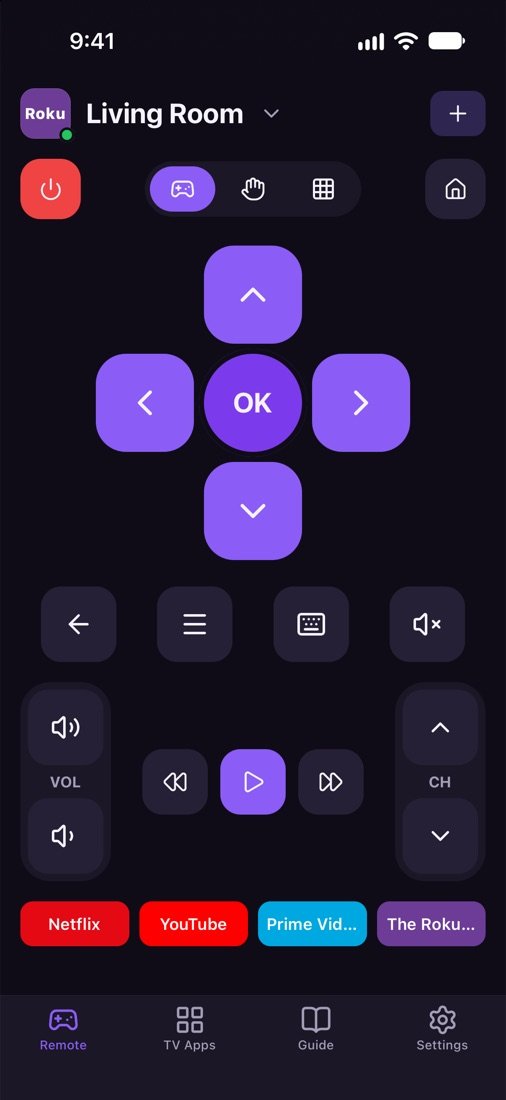
OK, Back, Home, Menu, volume, mute, channels, play and pause.
Touchpad
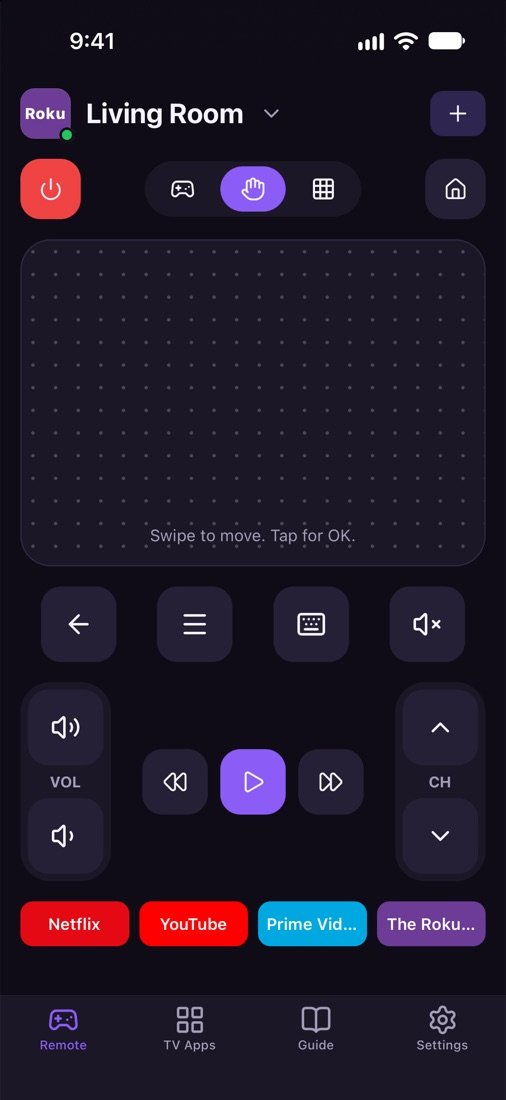
Swipe to move around menus and tap to select, like a real smart TV remote.
Keyboard
Type searches and passwords on the TV with your phone keyboard.
Number pad
Change channels and enter PINs fast.
TV apps in one tap
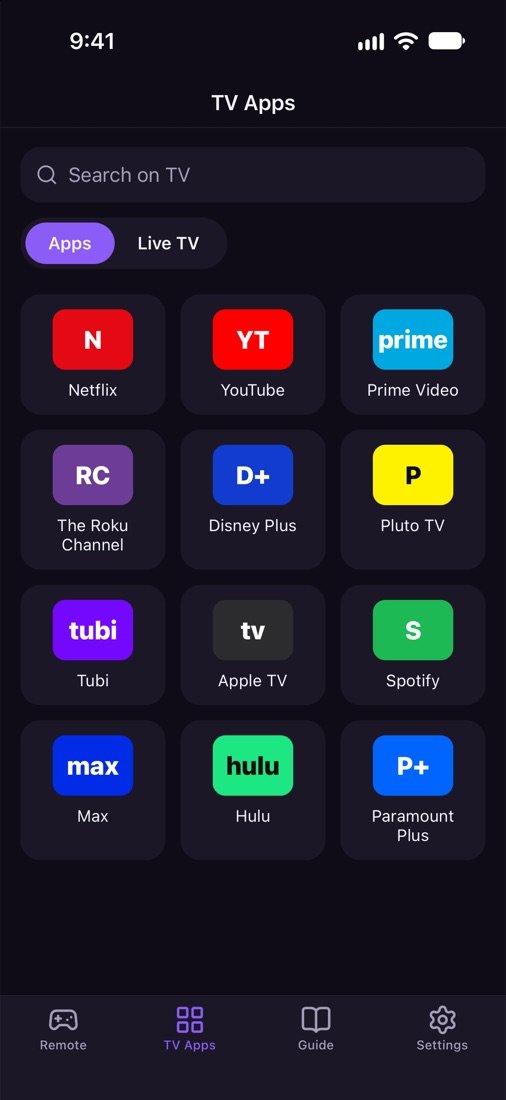
See the apps on your TV and open them right from your phone.
All your TVs
Add every TV at home, name them, and switch in a second. Pair each TV only once.
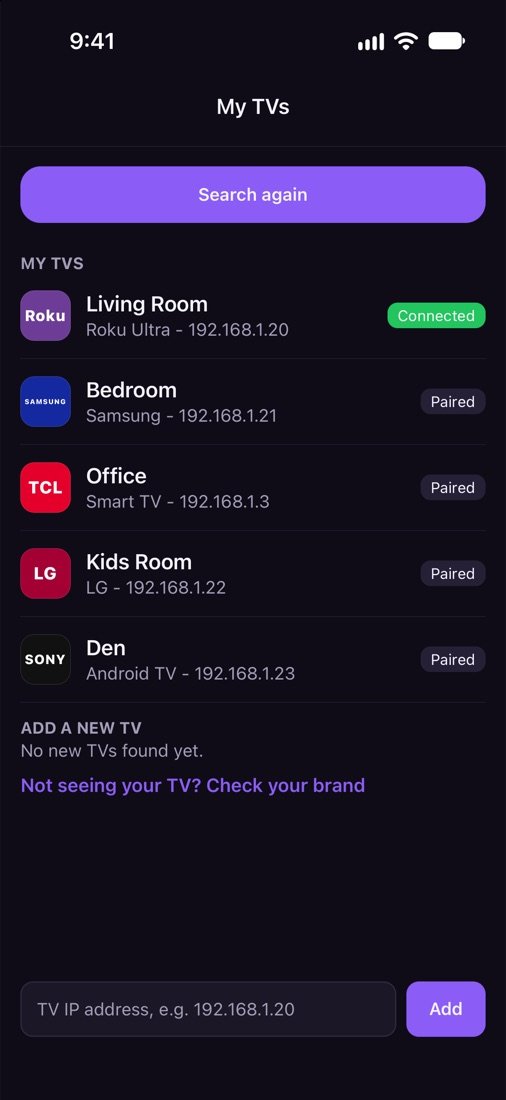
Easy setup
- Connect your iPhone and TV to the same Wi-Fi.
- Open All TV Remote and tap Allow when iOS asks to find devices on your local network.
- Tap your TV, then allow the phone on the TV or type the code it shows.
That is it. Next time the app connects by itself.
Questions and answers
Can't find my TV?
Put your phone and TV on the same Wi-Fi. A guest network or a different band of a mesh network can hide the TV.
Make sure the TV is on, not fully switched off at the wall.
Allow Local Network access: Settings > All TV Remote > Local Network. Without it the app cannot see any TV.
Turn off VPN apps while you use the remote. Some routers stop devices seeing each other ("client isolation" or "AP isolation"); turn that off in the router settings.
Still nothing? Add the TV by its IP address at the bottom of My TVs. You find the IP in the TV network settings.
How do I turn on my TV without its remote?
A TV that is fully off cannot hear your phone. The power button works only when the TV keeps its network on in standby, and only after you connected to it once.
Samsung: turn on Settings > General > Network > Expert Settings > Power On with Mobile.
LG: turn on Settings > General > Devices > Turn on via Wi-Fi (on some models: Mobile TV On).
Roku TV: turn on Settings > System > Power > Fast TV start.
Android TV / Google TV and Fire TV: they wake from standby while they stay on the network. Some models call this "network standby" or "quick start".
For the very first time, use the power button on the TV itself. It is usually under the logo or on the back.
Why do my apps not open on Roku?
The app must be installed on the Roku. Add it from the Roku Channel Store first.
On the Roku open Settings > System > Advanced system settings > Control by mobile apps, and set Network access to Default or Permissive.
Some apps need you to sign in on the TV once before they open from the phone.
I chose Deny on my Samsung TV. How do I fix it?
On the TV open Settings > General > External Device Manager > Device Connect Manager > Device List.
Find this phone and change it to Allow, or delete it so the TV asks again.
Then tap your TV in the app again and choose Allow on the TV.
I chose Decline on my LG TV. What now?
Tap your TV in the app again. The LG TV asks again, and you choose Accept with the TV remote.
If it does not ask, turn on "LG Connect Apps" in the TV settings (General > Devices, or Network on older models).
The code is not showing on my TV?
Android TV, Google TV (Sony, TCL, Hisense, Philips and more) and Apple TV show a code on the TV screen when you connect.
Make sure the TV screen is on and showing the home screen, not a game or an HDMI input.
Restart the TV (unplug it for 30 seconds), then try again. On Android TV, also update "Android TV Remote Service" from the Play Store on the TV.
Does it work when the TV is in standby?
Buttons work when the TV is on. In standby the TV only answers the power button, and only if it keeps its network on (see "How do I turn on my TV without its remote?").
After waking up, give the TV a few seconds. The app reconnects by itself.
Is it free, and what does it collect?
All TV Remote is free to use. It does not collect personal data.
It talks only to TVs on your own Wi-Fi. For Apple TV it also asks the Apple App Store for app pictures.
Support
Need help or have an idea? Email us and we will get back to you. Please tell us your iPhone model, iOS version and TV brand and model, so we can help faster. In the app you can also tap Settings, then Contact us.